

Shared Dashboard Filters
Last updated - 11 May, 2026
Shared dashboard filters are saved sets of resource or instance property filters are accessed by multiple users and apply across multiple dashboards. Shared filters are not tied to a single dashboard, enabling consistent filtering without recreating criteria.
When you apply a shared dashboard filter, supported widgets update dynamically based on the defined filter criteria. You can apply filters to update dashboard views, map them to dashboards for reuse, and save them for future use.
For more information on applying, mapping, editing, and deleting shared filters, see Shared Dashboard Filter Management.
Shared Dashboard Filter Groups
Shared dashboard filter groups are used to organize and manage shared dashboard filters.
Each shared dashboard filter must belong to a group. These groups act as containers that define how filters are organized and who can access them.
Shared filter groups enable the following:
- Organization of filters into logical categories
- Controlled access across users
- Centralized management of shared filters
Your permissions control how you can use a shared filter group—from viewing and applying filters to creating, editing, cloning, or deleting them.
Requirements for Shared Dashboard Filters
To view and apply shared dashboard filters, you need the following:
- A LogicMonitor user with View permissions for “Shared Filter Groups” in the Dashboards role permissions
- Access to the dashboard
- Access to all resource and instance properties referenced in the filter
To create shared dashboard filters or to map a shared dashboard filter to a dashboard, you need the following:
- A LogicMonitor user with Manage permissions for “Shared Filter Groups” in the Dashboards role permissions
Creating a Shared Dashboard Filter
- In LogicMonitor, navigate to Dashboards > select or create a dashboard.
For more information, see Dashboard Creation. - In the Filter by field, type to add a dashboard filter, then configure the required resource or instance properties for the selected filter.
For more information, see Dashboard filters.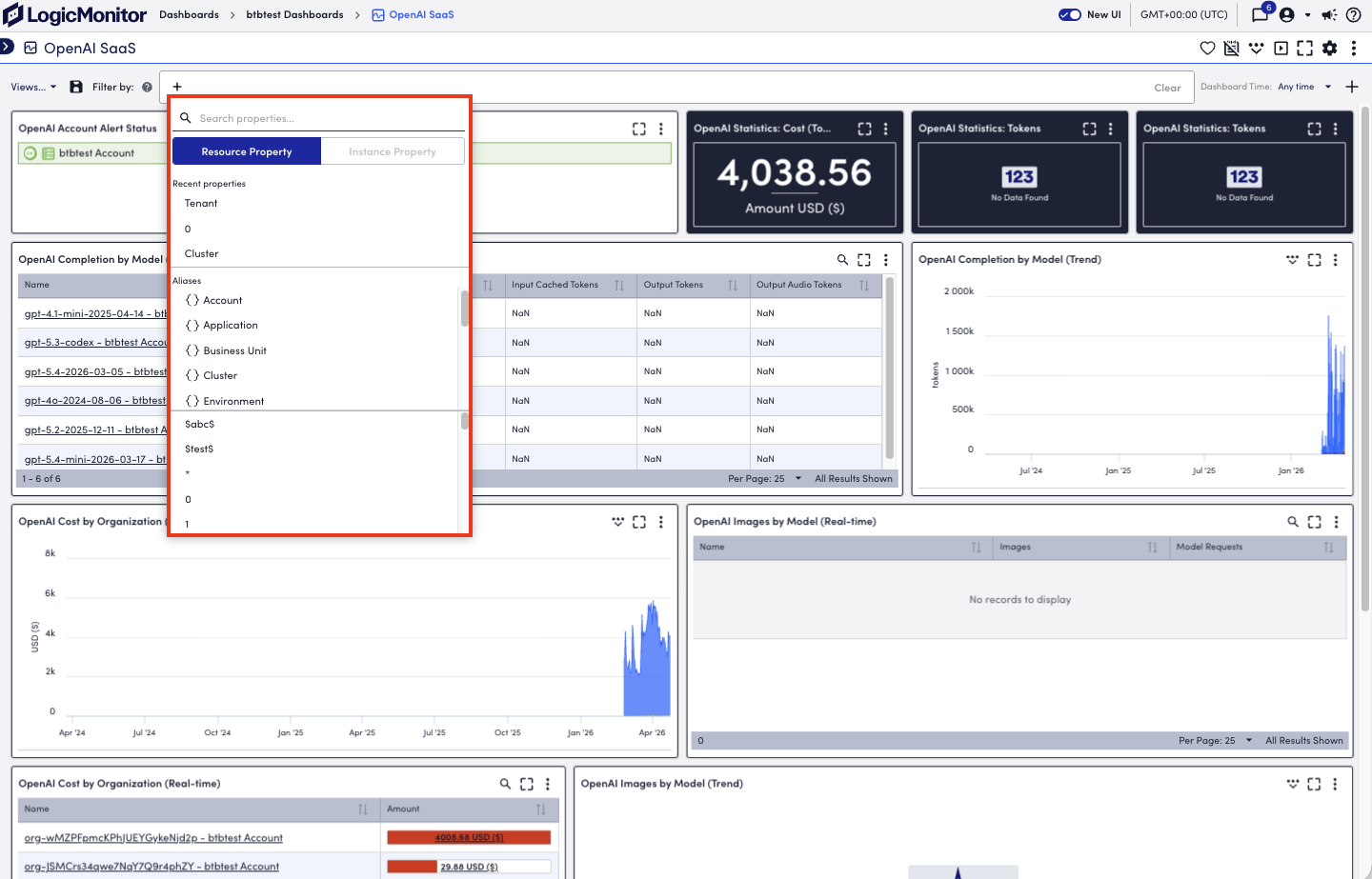
- To save your filter as a shared dashboard filter, select Save, and do the following:
- In the Save view as field, add in the name you want the filter have.
- From the Group type dropdown menu, select “shared.”
- In the Group name field, select a group for the shared filter.
- Select one of the following:
- To save the shared filter as a new filter, select Save as new view.
- To save updated to an existing filter, select Update.
- To create a new shared default filter, select Set as default filter, and then select Confirm when prompted.
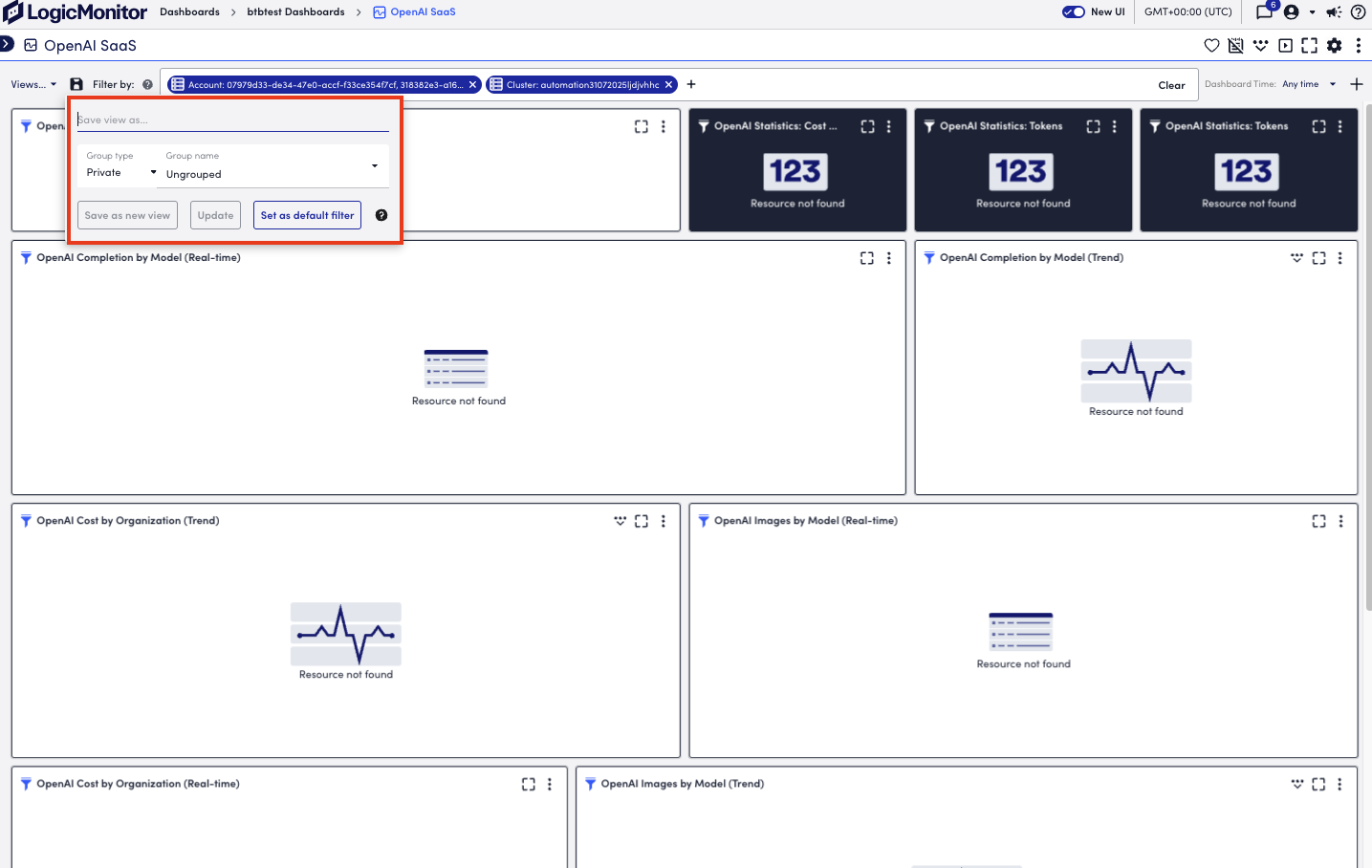
The shared dashboard filter is created and available for use across dashboards.
For more information, see Shared Dashboard Filter Management.
