

LogSource Configuration
Last updated – 13 May, 2026
LogSource is an LM LogicModule that provides templates to enable logs and configure the sending of log data for ingestion by LM Logs. LogSource helps you configure details about what logs to get, where to get them, and which fields should be considered for parsing.
Note: The following describes general steps to add and configure a LogSource. For information about configuration parameters for a specific type of LogSource, see configuration information for each type. For more information about the LogSource concept, see LogSource Overview.
Requirements for LogSource Configuration
- When using the LM Collector with a LogSource, the LM Collectors installed in your infrastructure must be version EA 31.200 or later.
For information on how to upgrade a collector, see Managing Collectors. - To access the resource mapping prioritisation feature, you must have EA Collector 36.400 or later installed on your machine.
- With Portal version 187 or later, LogSource supports only RE2-compatible regex patterns in the Filter, LogFieldTag, and ResourceMapping sections.
- EA Collector 34.100 or later supports processing of LogSources using RE2J.
- The Collector supports backward compatibility for existing LogSources that use Java-compatible regex patterns that are not RE2-compatible.
Adding the LogSource
Do the following to add a new LogSource:
- In LogicMonitor, navigate to
 More > Modules.
 - From My Module Toolbox, select
 Add.
Add. - In the Add window, select LogSource. The Add New LogSource window displays.
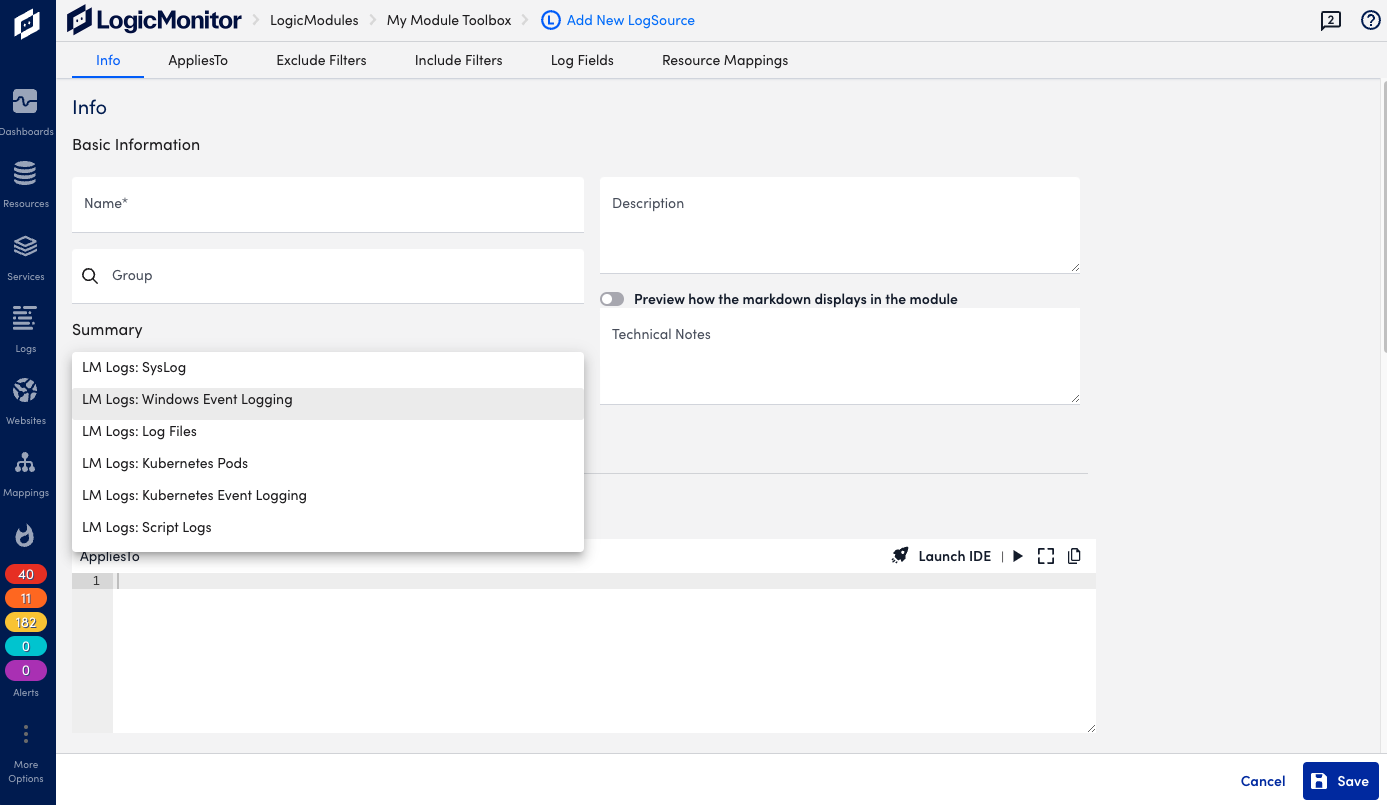
- Continue by configuring the LogSource as described in the following steps.
Note: Depending on the type of LogSource selected in the next step, you will see different sections for entering information. For example Exclude filters, Include Filters, Log Fields, and so on. The tabs at the top provide quick access to the different sections.
Configuring the LogSource
Basic Information
Provide general information about the LogSource, and select a type for it depending on the origin of the log data.
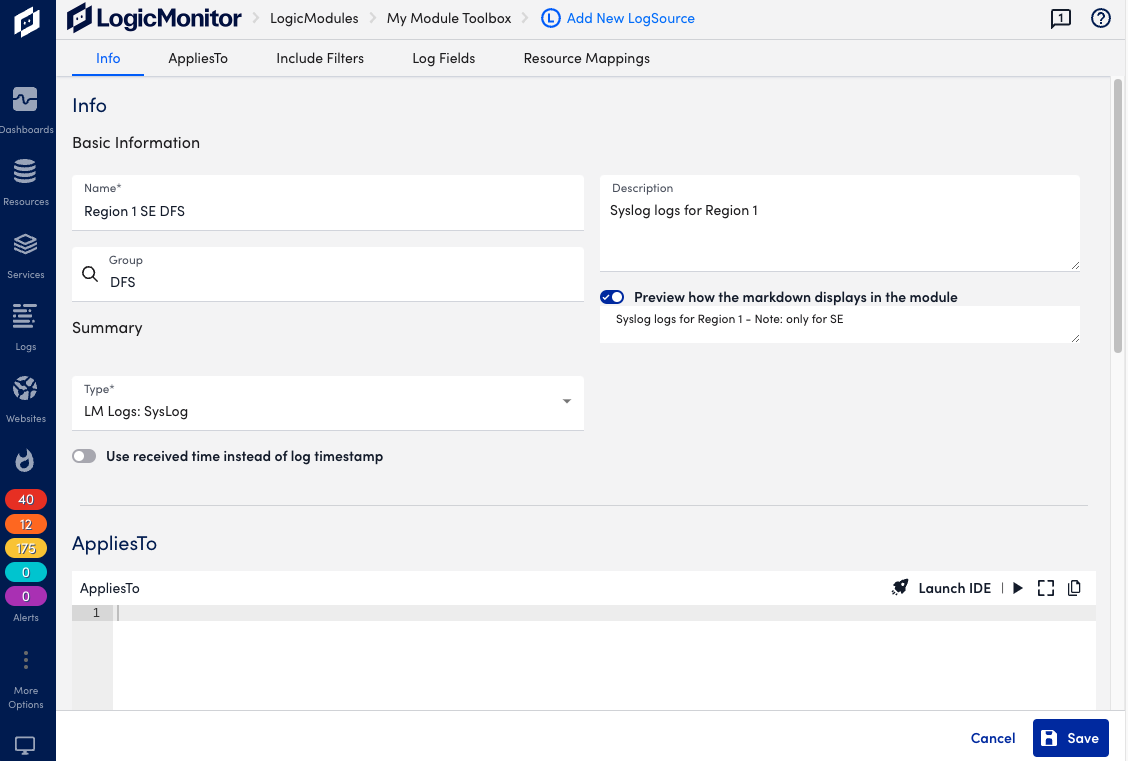
In the Info section, do the following:
- In the Name field, add a descriptive name. This is displayed in the list of logsources.
- In the Description field, enter a description of the source of the syslog logs. The description can provide additional context to help you and other users understand the purpose, function, or configuration details of the log source.
- In the Tags field, search for tags (also referred to as log fields) you want to assign to your log source.
Note: Tags are metadata fields used for filtering, grouping, and automation. For more information about tags, see the Log Fields table.
- In the Group field, select one or more groups that best categorize the log source. Groups typically reflect the function, location, or environment of the log origin.
- Use the Technical Notes field to provide detailed reference information that may assist with troubleshooting or maintenance.
- Toggle the Show preview of rendered technical notes switch to view how markdown-formatted content displays when rendered.
- Select a LogSource type using the Type dropdown menu.
AppliesTo
Configure the resources that uses the LogSource.
In the AppliesTo section, do the following:
- Enter the resources to which the LogSource is applied.
- Optionally, select Launch IDE for guidance through the resource selection.
- Select Done to save the configuration.
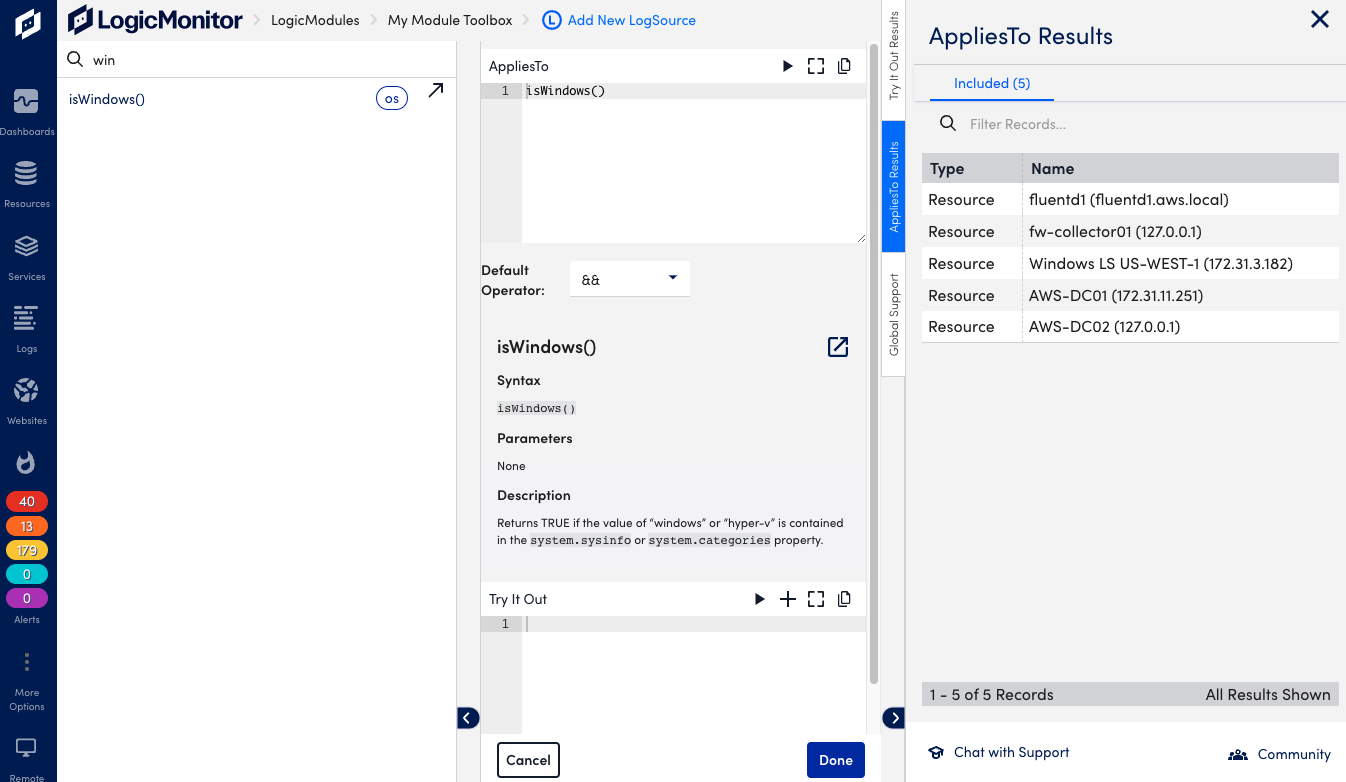
- Optionally, select the Test AppliesTo icon to test the resource selection, and refine the criteria as needed.
Filters
You can add filters to include or exclude events when configuring a log source. If you add filters, events must meet the filter criteria to be detected and alerted on. Available filtering options depend on the selected LogSource type. You can select an AND or OR operator to apply the filter logic.
Include filters enable you to specify which events are processed. Only events that match the defined criteria are included. Exclude filters enable you to omit specific events from processing, even if they match other criteria.
Note: If no filter is provided, all log events are included by default.
To add Filters, do the following:
- Select an
ANDorORoperator. - Select Add Filters. This opens a modal to add filter details.
- Select an option from the Attribute dropdown menu to define the item to filter on. The available options depend on the type of LogSource. For example, select “Level” for a Windows Event Logging type of LogSource.
- From the Filter Type dropdown menu, select either Include or Exclude.
- Select a comparison operator to define how the attribute value is evaluated in the Comparison Operator. For example, “Equal” matches an exact value, and “RegexMatch” evaluates patterns, depending on the attribute type.
- In the Value field, enter a value based on the selected attribute and comparison operator. For example, enter “Warning”.
- (Optional) In the Comment field, enter a description.
- Select
 Save.
Save.
The filter is added and applied based on the defined configuration and selected operator.
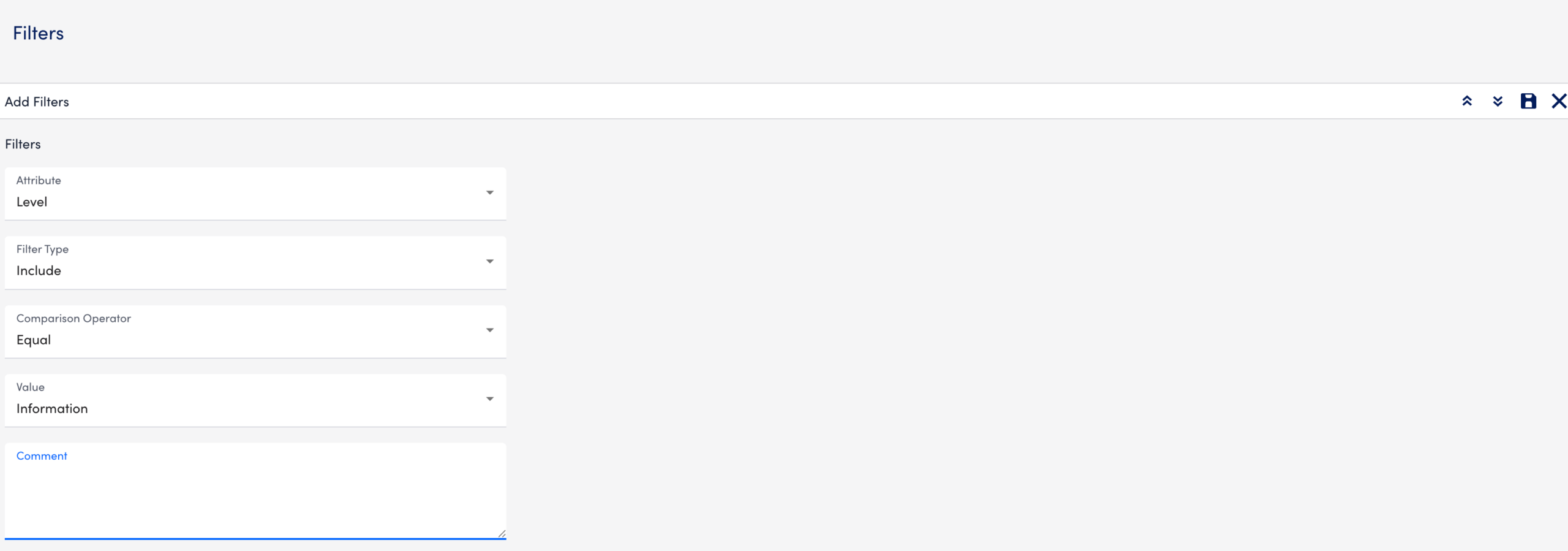
When defining the severity level to be included for incoming log messages, you can include multiple levels specified with a pipe separator. You can also use level numbers such as 1 for error, 2 for warning, and 3 for information.
As you are defining filters, you can select Test AppliesTo to perform test runs to ensure events are filtered and captured as you intended. You can also use the testing capability before any filters are defined in order to return all messages from a device, and use this information to refine parameter values.
Log Fields
You can configure Log Fields to include additional metadata to be sent with the logs. You can also add LogicMonitor resource properties as log metadata.
In the Log Fields section, do the following:
- Select Add Log Fields.
- For Method, add the method for collecting the metadata, options depend on type of LogSource.
For example, “Windows Event Attribute” for a Windows Event Logging type of LogSource. - Enter a Key, for example “Source”.
- Add a Value, for example “Source Name”.
- Add an optional Comment.
- Select Save. The log field is added.
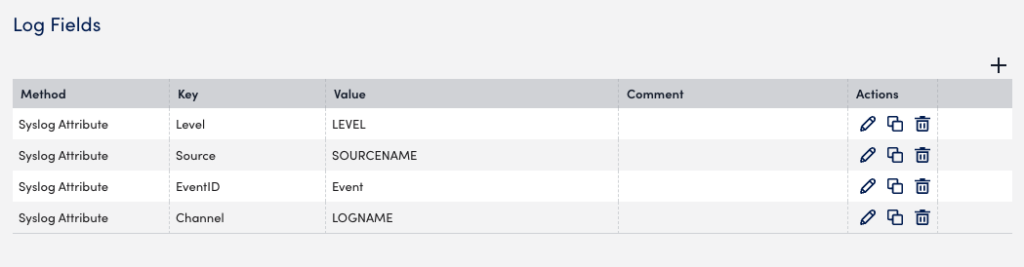
Example: Log Fields configured for metadata.
Resource Mappings
This is required for some LogSource types and provides information about which resource the logs should map to. It defines the resource properties used to map logs to the monitored resources from which the Collector collects data.
For more information see agent.conf Collector Settings.
You can identify and map resources using either an OR operator or an AND operator.
AND Operator Behavior in Resource Mappings
When using the AND operator for resource mapping, LogicMonitor evaluates all specified conditions together and identifies a resource only when all conditions are satisfied. This approach enforces strict matching criteria.
In multi-tenant environments, to use AND operator, consider the following:
- The AND operator requires all attributes to align to identify a resource.
- This method improves precision when combining multiple identifying properties.
- If conditions do not resolve to a single resource, the mapping does not associate the log with any resource.
For example, the ingested logs include the following three resource attributes based on the resource mappings:
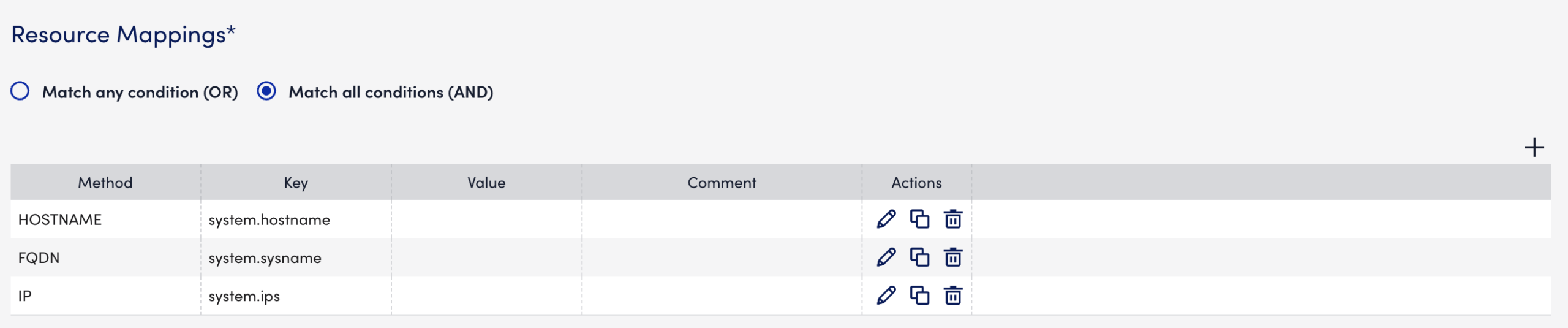
- key:system.hostname, value: DNS resolved hostname of syslog sending device
- key:system.sysname, value: DNS resolved FQDN of syslog sending device
- key: system.ips, value: DNS resolved IP of syslog sending device.
With the AND operator, logs are mapped to the resource with all three resource attributes.
OR Operator Behavior in Resource Mappings
When using the OR operator for resource mapping, LogicMonitor evaluates multiple conditions independently and selects a matching resource when any condition is satisfied.
In multi-tenant environments, consider the following:
- The OR operator enables flexible matching across multiple attributes
- Evaluation stops after the first matching condition is satisfied
,and subsequent conditions are not evaluated. - If multiple resources satisfy the condition, the mapping does not associate the log with any resource.
- The effectiveness of this approach depends on the uniqueness of the selected attributes.
For example, the ingested logs include the following three resource attributes based on the resource mappings:
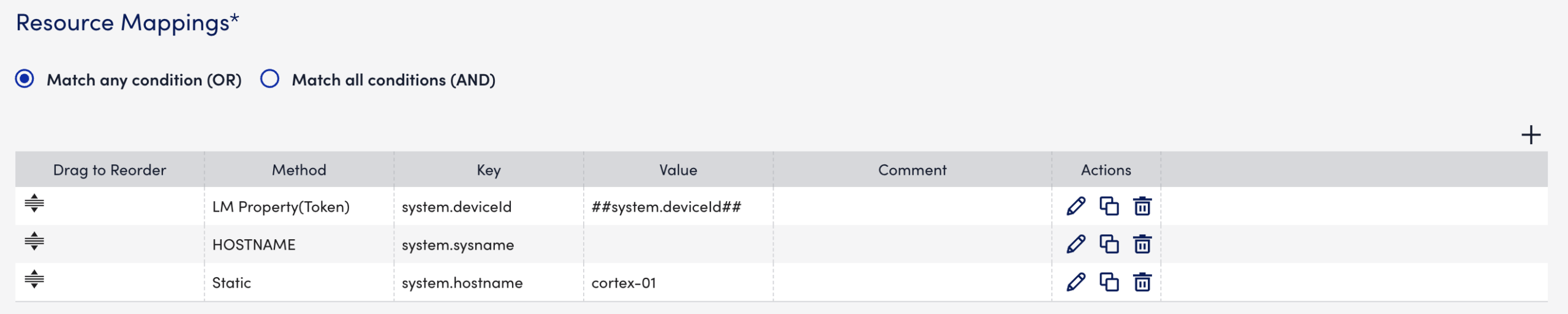
- key:system.deviceId, value: device ID of the resource if it is monitored. If the syslog-sending device is unmonitored, this attribute is not present.
- key:system.sysname, value:DNS resolved hostname of syslog sending device
- key:system.hostname, value: cortex-01 (hardcoded value)
With the “OR” operator, if a resource that matches the first resource mapping is found, the log is mapped to that resource. Otherwise, LogicMonitor evaluates the next resource mapping in sequence. The log maps to a resource that matches at least one resource attribute.
When Syslog and SNMP trap ingestion is enabled in agent.conf (lmlogs.syslog.enabled=true and lmlogs.snmptrap.enabled=true), LogicMonitor applies a default resource mapping sequence using the OR operator.
Default mappings display on the LogSource creation page for Syslog and SNMP trap LogSources.
Key Considerations for Resource Mapping
To add resource mapping for environments that provide services for multiple LogicMonitor accounts, consider the following:
- Combine identifiers such as IP address with tenant-specific properties to improve uniqueness.
- Use multiple attributes to strengthen identification across tenants.
- Select attributes that are consistently available across ingestion methods.
- Ensure that attribute combinations reliably identify the same resource across ingestion events.
- When conditions do not resolve to a single resource, logs are not mapped to any resource and are considered resourceless.
To configure resource mappings, do the following:
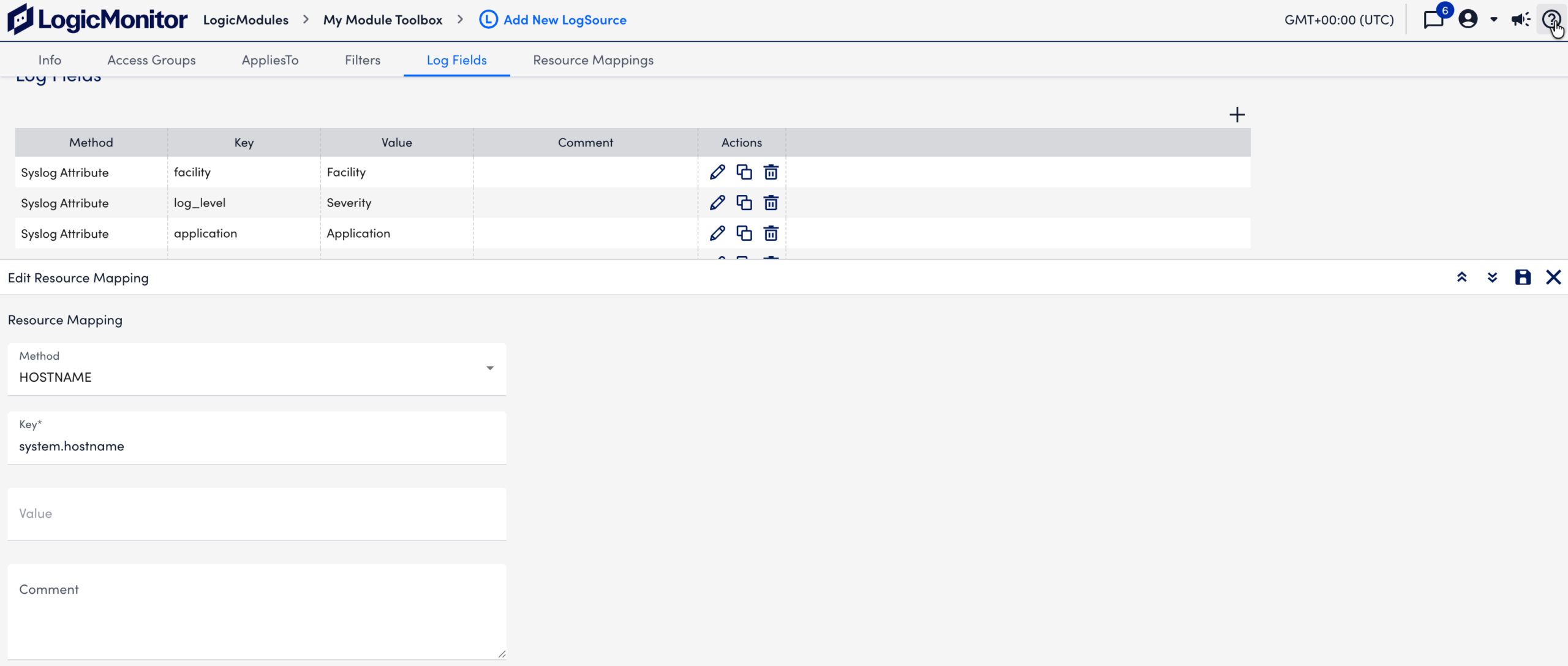
- Select Add Resource Mapping
s. - In the Method field, select a mapping method (for example, “IP”).
- In the Key field, enter a mapping key (for example “system.hostname”).
- In the Value field, enter a value based on the selected method.
- (Optional) In the Comment field, enter a description.
- Select Save.
The resource mapping displays in the table. - Select either Match any condition (OR) or Match all conditions (AND).
Note: If OR is enabled, you can use the Drag to Reorder column to reorder the sequence of the resource mappings based on your preference to identify the resources for resource identification.
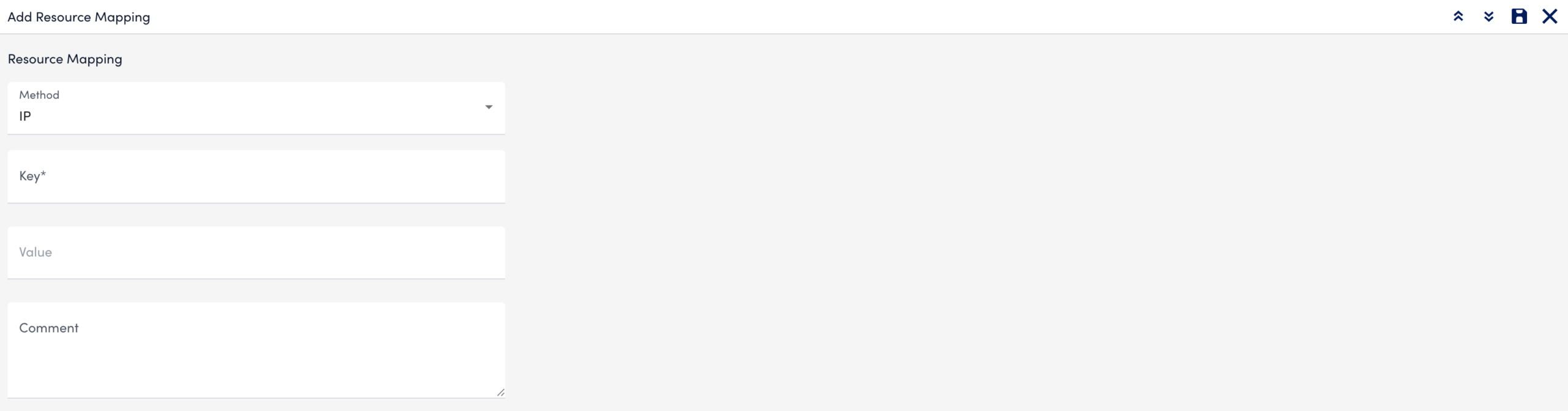
Example: Resource mapping in the following is equivalent of this collector configuration:
lmlogs.syslog.hostname.format=IPlmlogs.syslog.property.name=system.hostname
Enabling the LogSource
When all the sections are configured, select Save to enable the LogSource (or update an existing one).
Enabling Preferred Collectors
Note: This step is only needed if logs are sent to a different collector than the one monitoring the resource. If logs are sent to the same monitoring, you don’t need to configure a preferred logs collector.
The following describes how to define a Logs Collector Group and Preferred Logs Collector for each resource or resource group.
Warning: LogSource configurations supercedes collector configurations. For example, say you are sending logs to a Collector A resource using the traditional log collection method. Then you configure a new LogSource that applies to that resource. In this case the LogSource configuration is applied, which could cause potential resource mapping conflicts.
Enabling on a Resource
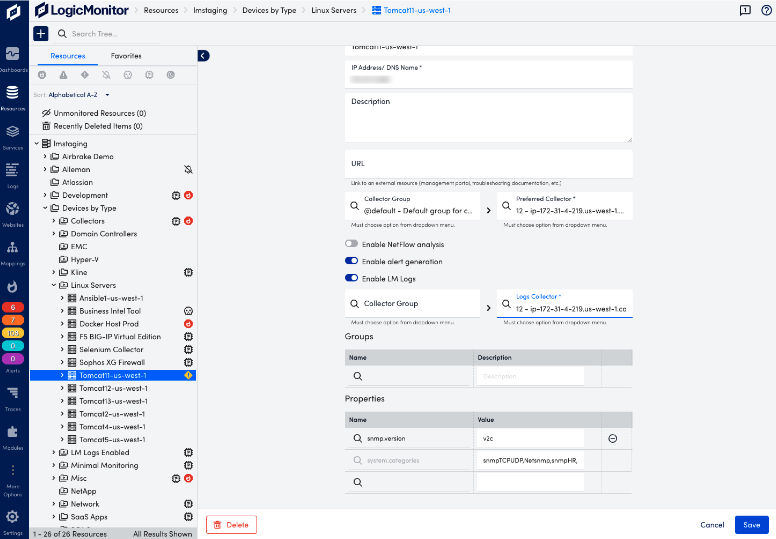
- Navigate to Resources and select the desired resource.
- For each resource, select the Manage Properties icon to open the Manage Resource view.
- Toggle Enable LM Logs to on.
- Select the desired Collector Group (optional) and the preferred Log Collector (required) from the drop-down, type in field to see available options.
- Select Save.
- Repeat the procedure for each resource you for which want to enable logs collection.
Enabling on a Resource Group
Note: Preferred logs collector configurations are not saved at Resource Group level. This means that if new resources are added to the group after the initial configuration, you must reapply the preferred collector to the resource group, or manually configure this for the new resource itself.
- In LogicMonitor, navigate to Resources and select the desired static resource group.
- Select the Logs tab and then select Set Preferred Logs Collector.
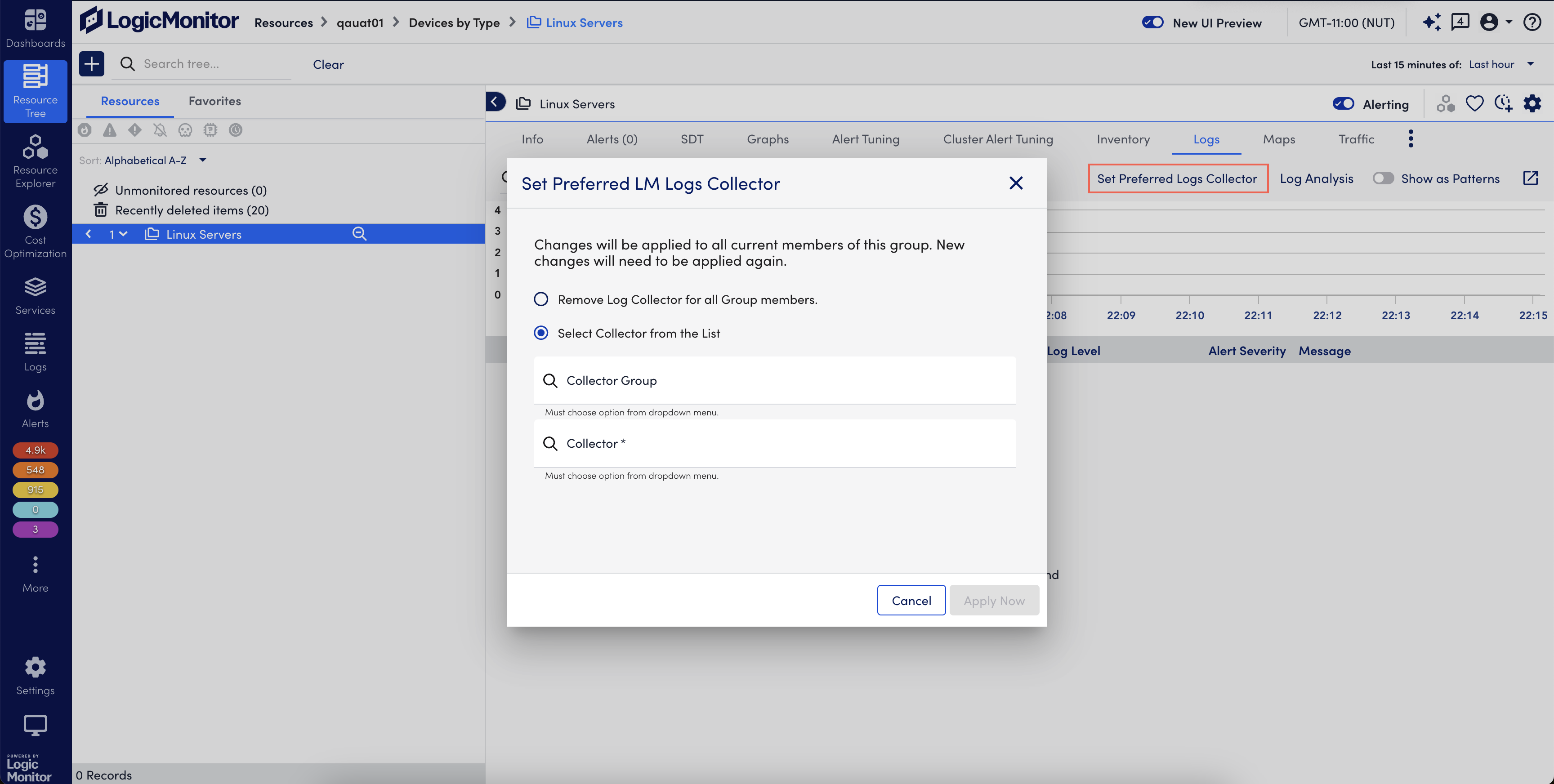
- Select any of the following options:
- Remove Log Collector for all Group members – Select to remove log collector from the resource group. By default, this option is selected.
- Select Collector from the List – Select Collector Group (Optional) and Collector (Required) from the drop-down list.
- Select Apply Now to update the configuration.
Type-specific Configuration Parameters
For information about configuration parameters for a specific type of LogSource, see the following:
