
Log Query Report
Last updated - 11 February, 2026
Log Query Reports in LogicMonitor provide a way to consistently retrieve, export, and share log data by running a defined log query over a specified scope and time range. You can use interactive log searches as repeatable reports that can be generated on demand or on a schedule.
When you configure a Log Query report, you define which log events are included using Log Query Language (LQL). You can specify filtering conditions, field-based matching, and optional aggregation logic, enabling precise selection of relevant log data. In addition, you can control how the results display by choosing the raw log events, aggregated results, or both in the same report.
For more information about Log Query Language (LQL), see Query Language Overview.
Configuring a Log Query Report
- In LogicMonitor, navigate to Reports.
- Select
 > Add Report > select Add for the Log Query report.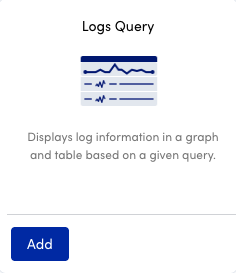
- In the Name field, enter a name for the report.
Report names cannot include the operators and comparison functions used in LogicMonitor’s datapoint expression syntax. - (Optional) In the Description field, enter a description for the report.
For example, you can enter a description of the specific purpose of the report. - From Report Group, select the report group where your report is stored.
Matching groups display as you type, and you can select the group from the list. - From Format, select the type of format for the output of the report.
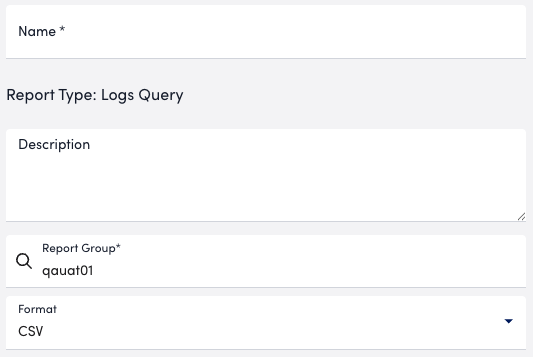
Note: Only a comma-separated (CSV) format is currently available for the report output.
- In the Time Range section, configure the time range you want to base the report on by doing one of the following:
- To configure a predefined time range, select Predefined time range, and then select one of the time range options.
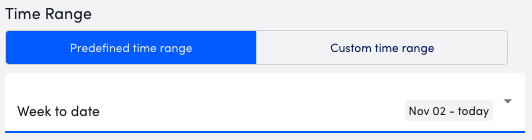
- To configure a custom time range, select Custom time range, and then configure the date and time.
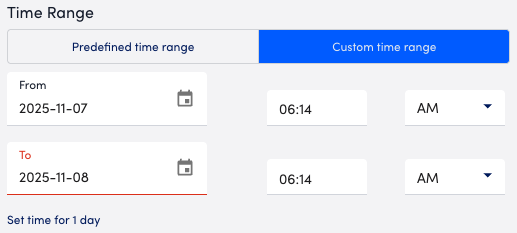
- To configure a predefined time range, select Predefined time range, and then select one of the time range options.
- In the Logs query section, define which log events you want included in the report by doing the following:
- Select how you want the results of the query displayed in the report, by selecting one of the following:
- To display the individual log messages, select Basic.
This option is useful for auditing and troubleshooting log messages. - To include only the aggregate results, select Aggregation.
This option is useful for trend analysis and high-level reporting. - To include a combination of individual log messages and the aggregate results, select Both (Basic + Aggregation).
This displays as raw events and aggregated summaries together so you can correlate detailed entries with summarized metrics.
- To display the individual log messages, select Basic.
- Configure the query for the log events you want included in the report by doing one of the following:
- To manually enter the logs query using the Logs Query Language (LQL), enter the query in the Partition field, and then select
 Run query.
- To manually enter the logs query using the Logs Query Language (LQL), enter the query in the Partition field, and then select
- Select how you want the results of the query displayed in the report, by selecting one of the following:
Note: To retrieve all logs for the selected time range, enter an asterisk (*) as the query.
- To use a saved view, select Saved views, and then select a query.
Note: The saved views are displayed based on the queries created on the Logs page. The query automatically runs, and you can view the preview of the query in the Logs query test results panel.
- To import a view, select Saved views, and then select “Import saved views”.
Note: Imported saved views must be in JSON format.
In addition, you can export the saved views.
- Use the Columns settings to configure the columns you want displayed in the report.
You can configure the order the columns display in and whether or not to hide certain columns.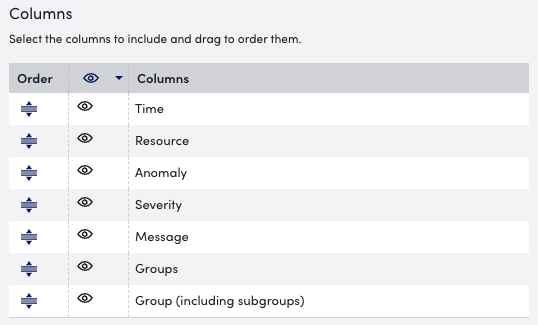
- From the Time Zone dropdown, select the time zone for your report.
- In the Report Schedule section, do the following to configure the report to generate on a schedule:
- Toggle the Generate this report on a schedule switch.
- From the Frequency dropdown menu, select how frequent you want the report to generate, and then configure when you want the report to generate.
For example, if you configure the report to generate daily, you can choose the time to generate the report each day. If you configure the report to generate weekly, you can choose the day of the week and time to generate the report for the selected date. If you configure the report to generate monthly, you can configure the day of the month and time to generate the report.
Each frequency option provides you a setting for selecting the time zone. - In Recipients Email, enter the name of the user you want to receive the generated report.
You can also add recipient groups.
You can enter as many users as needed.
LogicMonitor attempts to match values as you type.
The recipients you add to the report are emailed a generated report based on the format you configured and the email associated with the username.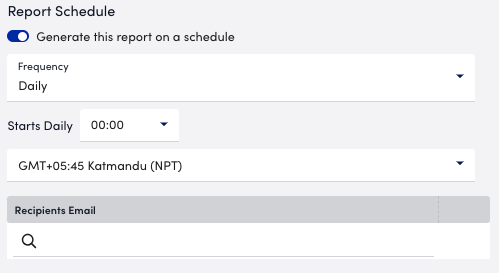
- Do one of the following to save the report:
- Select Save.
The report saves to the Report Group you selected.
If you configured the report to generate on a schedule, the report generates and sends to recipients based on the frequency you configured. - Select Save and Run.
The report saves to the Report Group you selected and generates a report based on the format you configured.
If you configured the report to generate on a schedule, the report generates and sends to recipients based on the frequency you configured.
- Select Save.
Note: The maximum limit for generating the Log Query report is 50. You must wait for 24 hours to generate the next report or contact your system administrator.
Threshold Limits
Adhoc Requests Thresholds (Limit for number of items) = 10,000 records
Scheduled Requests Thresholds = 50,000 records
