
Edwin AI Investigation
Last updated - 31 March, 2026
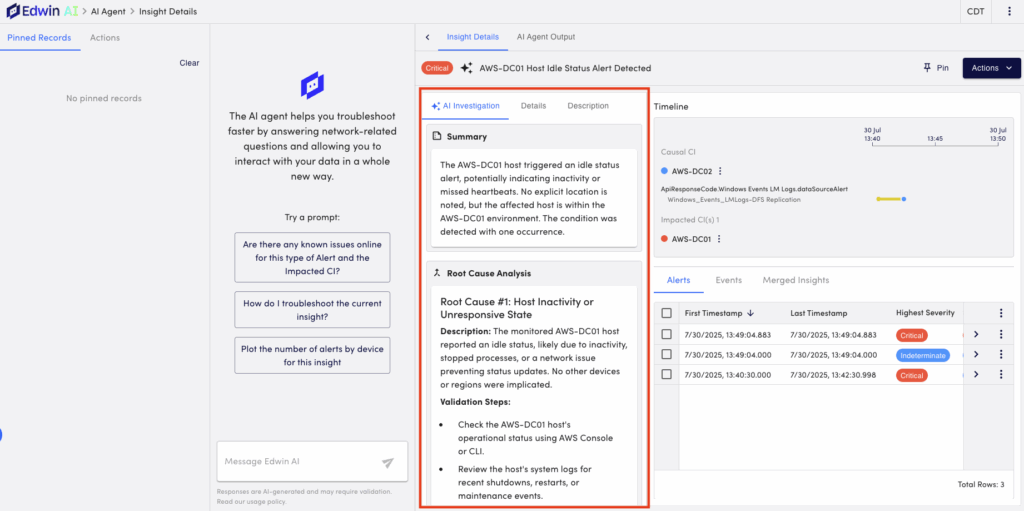
The AI Investigation tab in Edwin AI provides an in-depth, AI analysis of an insight or singleton alert. This tab helps you understand what is happening, what may have caused the issue, and how to begin resolving it.
AI Investigation analyzes alerts, metrics, logs, change requests, and other available data to generate an informational timeline and deliver root cause analysis, impact visibility, and actionable remediation guidance.
Note: By default, Edwin AI automatically creates an AI Investigation for critical and major insights and singleton alerts. For other insights and singleton alerts, you need to manually trigger generation of the AI investigation. For more information, see Manually Generating AI Investigation for Lower-Severity Insights.
When an insight is classified as major or critical, Edwin AI automatically performs the AI investigation, and provides the following analysis:
- AI Title—A concise title is generated summarizing the insight or alert.
- AI Summary—An overview of the issue, highlighting impacted locations, devices, and applications.
- Root Cause Analysis (RCA)—Lists the most probable cause of the issue.
Root causes can be derived from alert data and available LogicMonitor log events, and ServiceNow Change Requests, associated with impacted configuration items during the alert window.that you can reference to confirm whether that root cause is accurate. - Impact—Information describing the scope of the issue, including affected resources and services.
- Timeline—A chronological view of the most important alerts, signals, and contributing events leading up to and during the issue.
- Suggested Remediation Steps—A list of actions based on the RCA to help resolve the issue. These display within the RCA section.
- Immediate Fix—Steps to resolve the current issue.
- Preventative Actions—Steps to reduce the likelihood of recurrence.
Note: You can use the AI investigation field as the description for an incident in your system of record, which you can configure in the Rules and Actions builder.
Requirements for AI Investigation
To access the AI Investigation tab, you need the following:
- An Edwin AI user with the “Manage” permissions set for Edwin AI Dashboards and Alerts
- A Generative AI SKU
- Insight and Alert AI Investigation Actions and Rules created and activated in your portal
To include Log data in the Edwin AI Investigation, you need an Edwin AI API user with “View” permissions for Logs and Traces settings. For more information, see Logs & Traces Permissions.
To include Change Request data in the Edwin AI Investigation, you need to configure the change request agent. For more information, see Change Requests Agent.
Accessing the AI Investigation Panel
- In LogicMonitor, navigate to Edwin AI > Insight or Alerts page.
- Select Details on your insight or alert to open the Details page.
The AI Investigation panel display with information on your insight or alert.
Manually Generating AI Investigation for Lower-Severity Insights and Singleton Alerts
- In LogicMonitor, navigate to Edwin AI > Explore page.
- Select Details on an insight or singleton alert to open the Details page.
- From the Actions dropdown menu, select “Run AI Investigation.”
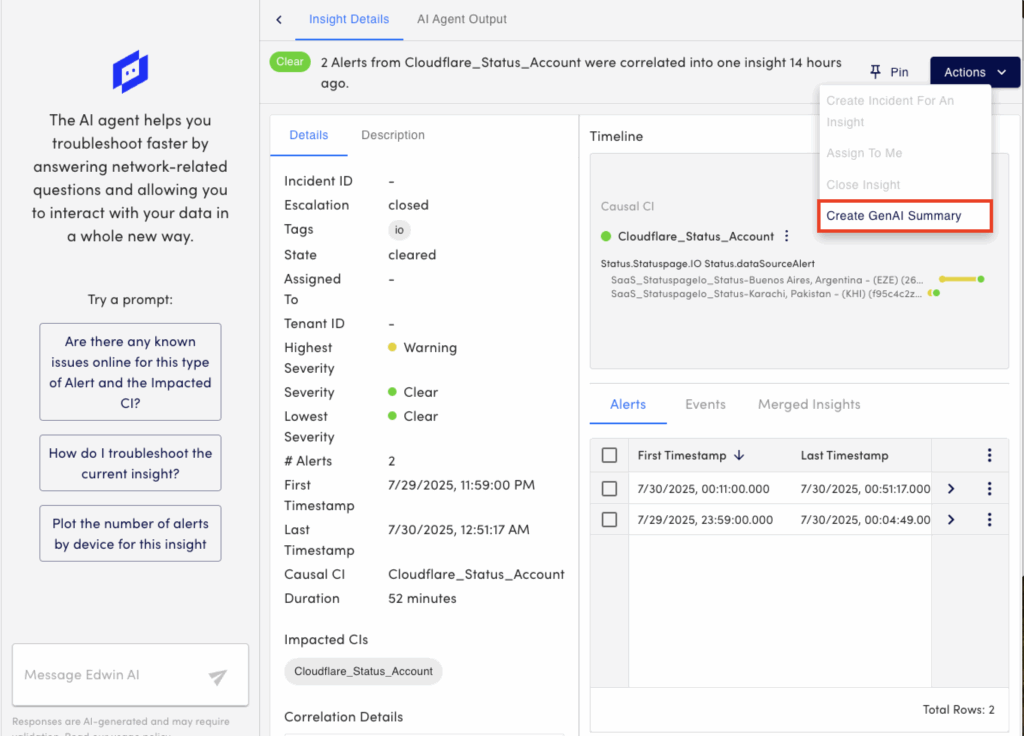
The AI Investigation tab takes a few moments to generate and automatically loads in the panel when complete.
Note: If you do not see the Run AI Investigation Action, check that the Rules and Actions have been configured properly.
If the button is grey, the Insight or Alert does not meet the conditions defined in your AI Investigation Rules.
